


Cursor is better if you want AI built into every part of your coding flow, while traditional VS Code shines if you like to hand‑pick tools and wire everything up yourself.
Cursor turns refactoring, boilerplate, and cross‑file changes into a chat‑like back‑and‑forth, so the editor feels more like a partner than a passive window.
VS Code, gives you a huge extension ecosystem and lets you decide exactly how much AI to invite in, and where. If you’re unsure which mindset fits you better, keep reading and we’ll walk through how each one changes your day‑to‑day work.
Key Takeaways
- Cursor offers seamless, native AI integration for rapid prototyping and multi-file edits.
- VS Code provides unparalleled extensibility and control through its massive plugin ecosystem.
- Your choice fundamentally depends on prioritizing AI-driven speed versus customization and cost.
The AI-Native Experience: Cursor
Cursor is the better fit when you actually want AI to sit at the center of how you code, not just live in the margins as a helper. It starts from a simple question: what if the AI wasn’t an add‑on, but the main event? The whole interface leans into that idea.
You don’t just get smarter autocomplete; you get a Composer agent that can touch many files at once based on a plain language prompt.
You can chat with your codebase, ask how a feature is wired, or why a certain function exists, and get grounded answers. It feels less like typing into a box and more like working with a second pair of hands.
For fast prototyping, Cursor is hard to ignore. You describe a feature, and its background agents quietly scaffold a surprising amount of working code.
It’s especially strong for what a lot of developers jokingly call vibe coding workflows, trying out ideas quickly, nudging the design around, and not getting stuck on syntax or boilerplate.
According to the 2025 Stack Overflow Developer Survey, “84% of respondents are using or planning to use AI tools in their development process”, showing that AI has rapidly become part of everyday coding workflows worldwide [1].
Moving over is not a jarring jump either, because:
- Your VS Code settings and keybindings can be imported directly
- The editor is a fork of VS Code, so the layout feels familiar
- Most core shortcuts and workflows still behave the way you expect
So the learning curve stays shallow, even though the AI layer is doing new things on top.
That said, this kind of integrated approach has real trade‑offs:
- Subscription Model: To use Cursor without hard limits, you need a paid plan, which not everyone can justify.
- Performance Considerations: All those built‑in AI features can add overhead on older or less powerful machines.
- Missing Polish in Spots: Some long‑polished VS Code experiences, like side‑by‑side diff reviews, still feel a bit less mature here.
The result is a very cohesive, AI‑first editor that can speed up your work and change how you think about coding, but it comes with a recurring cost and a sense that you’re living slightly ahead of the stable, well‑worn path.
The Extensible Powerhouse: Traditional VS Code

VS Code, in its traditional form, is a testament to modularity. It’s a powerful, lightweight core that you build upon, especially if you enjoy assembling your own stack of essential tools and editors over time.
Its greatest strength is the extension marketplace, with thousands of plugins for every conceivable task. Want AI? You add GitHub Copilot.
Need advanced Git tools? There’s an extension for that. This approach gives you immense control over your environment, allowing you to tailor it perfectly for specific projects, especially those requiring:
- Secure Coding Practices: We often rely on dedicated extensions for vulnerability scanning and static analysis, integrating them precisely as needed.
- Brand monitoring or data visualization: Niche extensions exist for highly specialized workflows.
It’s also free. This cost-effectiveness, combined with no vendor lock-in, makes it a default choice for many teams. You own your setup.
The AI experience, yet, is more fragmented. You’re managing extensions, their settings, and their interactions. While powerful, it lacks the seamless, agentic feel of Cursor for tasks that span the entire codebase.
The cons are the flip side of its pros.
- Fragmented AI: You manually assemble your AI toolkit, which can feel less integrated.
- Configuration Overhead: Reaching a “perfect” setup requires time and tweaking.
- Less Agentic: AI helpers typically operate on the current file, not the entire project context.
You trade seamless integration for ultimate flexibility and cost control.
When Your Project Dictates the Tool
The best editor is the one that disappears, letting you focus on the code. Your project’s requirements should guide you. This comparison helps clarify the decision.
| Aspect | Cursor | Traditional VS Code |
| AI Integration | Native and seamless (chat, Composer, edits) | Extension-based (e.g., Copilot), requires setup |
| Extensibility | VS Code-compatible, but smaller ecosystem | Massive marketplace with thousands of plugins |
| Workflow | Natural language-driven, multi-file focus | Manual, file-scoped, highly customizable |
Choose Cursor when speed and AI collaboration are paramount. It’s ideal for rapid prototyping, solo projects where you want to speed up development, or any situation where you’d rather describe a solution than type it line by line.
If you find yourself constantly context-switching, Cursor’s codebase-aware AI can keep you in a state of flow.
Stick with VS Code for team environments, complex integrations, or strict budgets. Its stability, extensive plugin library, and zero cost make it the safe, powerful choice for large-scale applications.
For projects where security is a primary concern, the ability to carefully select and configure specific analysis tools within VS Code offers a level of precision that an all-in-one AI tool may not.
Finding Your Fit
The funny thing about tools is that they reveal you a little, how you think, how you work under pressure, how you cut corners or don’t. Editors are the same.
The truth is, there isn’t a single “right” editor for everyone. The space is shifting too fast, and each week brings some new feature or plugin that claims to change your life. So chasing a perfect answer is a trap.
A better move is to treat this like an experiment, not a marriage.
Start with Cursor in a Real Week of Work
Cursor’s free tier is the easiest low-risk way in.
- Import your VS Code settings so you’re not starting from zero.
- Use it on work you actually care about, not some fake demo project.
- Keep your usual keybindings and themes, so you can focus on behavior, not cosmetics.
Give yourself a week where Cursor is your main editor and you actually lean on it, especially if you’re testing whether it feels like the best editor for vibe coding in your real, day-to-day work. Don’t just click around.
Make it sweat, especially as “65 percent of organizations are now regularly using generative AI”, a shift that signals how quickly AI-assisted workflows are becoming normal in day-to-day software work, not just experiments [2].
What to Try During That Week
Pick a small, bounded project so you can see it end-to-end:
- Build a tiny prototype (a feature, a microservice, or a script you’ve been avoiding).
- Or refactor a messy module using chat and Composer, back and forth, a few times.
- Ask it to explain unfamiliar files, then have it rewrite sections with constraints you care about (performance, readability, testability).
You’re not just checking if it “works.” You’re asking: does this editor change how fast you move, how safe you feel shipping code, how often you get blocked.
Use VS Code as Your Control Group
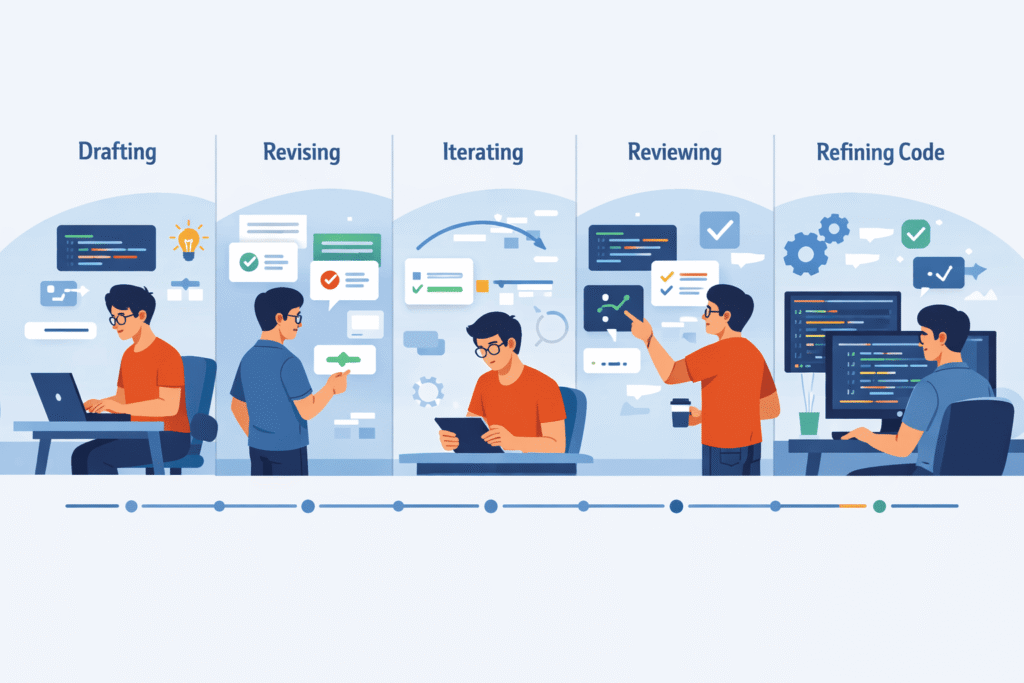
Once you’ve had that week with Cursor, switch back to your regular VS Code setup for a task that plays to its strengths.
This works best with something oddly specific:
- A problem that depends on a rare or niche extension.
- A workflow where your custom VS Code setup is almost muscle memory.
- A debugging session where you rely on particular panels, shortcuts, or tooling.
Run the same kind of work you did in Cursor (or as close as you can) and pay attention to the friction.
You’ll start to notice small but sharp contrasts:
- Where Cursor’s AI cuts through boilerplate or wiring.
- Where VS Code’s plugin ecosystem still feels deeper, more battle-tested.
- Where you trust your old setup more, especially when you’re tired or rushing.
That contrast is the real teacher.
How to Judge the “Fit” (Without Crowning a Winner)

The question isn’t “Which editor is better?” The question is, “Which editor is better for this type of work, with my current brain, on this kind of day?”
Some simple filters help:
- For fast exploration Cursor tends to shine when you’re sketching ideas, spiking features, or reading unfamiliar codebases with lots of context switching.
- For deep, specialized workflows VS Code often feels stronger when you rely on a stack of very specific extensions, custom tasks, and debuggers you’ve tuned for years.
- For refactors and cleanup You can cycle: use Cursor to propose big structural changes, then use VS Code’s familiar tools to stabilize, test, and tighten everything.
The goal isn’t to crown a champion. It’s to build a small mental map: “For X work, I reach for Y editor.” That’s it.
FAQ
How does AI code generation change a traditional IDE setup?
AI code generation shifts work from manual typing to intent-based editing. Instead of writing every line, you describe what you want and refine results.
Compared to a traditional IDE setup, this speeds up boilerplate reduction, supports iterative refinement, and helps with multi-file refactoring. The tradeoff is learning how to guide the AI clearly and review output carefully.
What should developers consider when comparing Cursor vs traditional VS Code setups?
When comparing Cursor vs traditional VS Code setups, think about workflow efficiency, context window size, and editor extensibility.
AI-driven setups focus on natural language prompts and codebase queries, while traditional tools rely on extensions and shortcuts. Your choice depends on whether you prefer faster prototype acceleration or full manual control over every coding step.
Does AI-assisted coding affect debugging and code review?
AI-assisted workflows change how developers debug and review code. Inline diff review, smart rewrites, and AI code review can surface issues earlier.
However, traditional debugging tools like breakpoints and step-through execution still matter. The key is using AI as a helper, not a replacement, especially when accuracy and long-term maintainability are critical.
Are there performance or security tradeoffs with AI-powered editors?
Yes, there can be performance overhead from background analysis and codebase embeddings. Some developers worry about lightweight performance and vendor lock-in risk.
Security code scans and command handling rules help reduce risks, but teams should evaluate how much code context is shared and whether local models support is available for sensitive projects.
How do these setups impact long-term developer productivity?
Over time, AI-assisted setups can improve developer productivity through faster code generation speed and better workflow efficiency.
Traditional setups excel in predictability and deep customization. A human–AI partnership works best when developers actively review changes, keep keybindings customization, and use an editor decision framework that matches their project scale and experience level.
Choosing a Partner, Not a Winner
In the end, your editor is less like a throne and more like a teammate you call in for certain games. You might keep both: Cursor as the partner for idea-heavy, rewrite-heavy, or exploratory work, and VS Code as the anchor for complex, extension-heavy workflows where every panel and shortcut is baked into your hands.
What matters is matching the tool to the work, not to hype or loyalty. If you want that same thoughtful approach for security, you can join the Secure Coding Practices Bootcamp and train yourself to ship safer code from day one.
References
- https://survey.stackoverflow.co/2025/ai
- https://www.mckinsey.com/capabilities/quantumblack/our-insights/the-state-of-ai-in-2024