


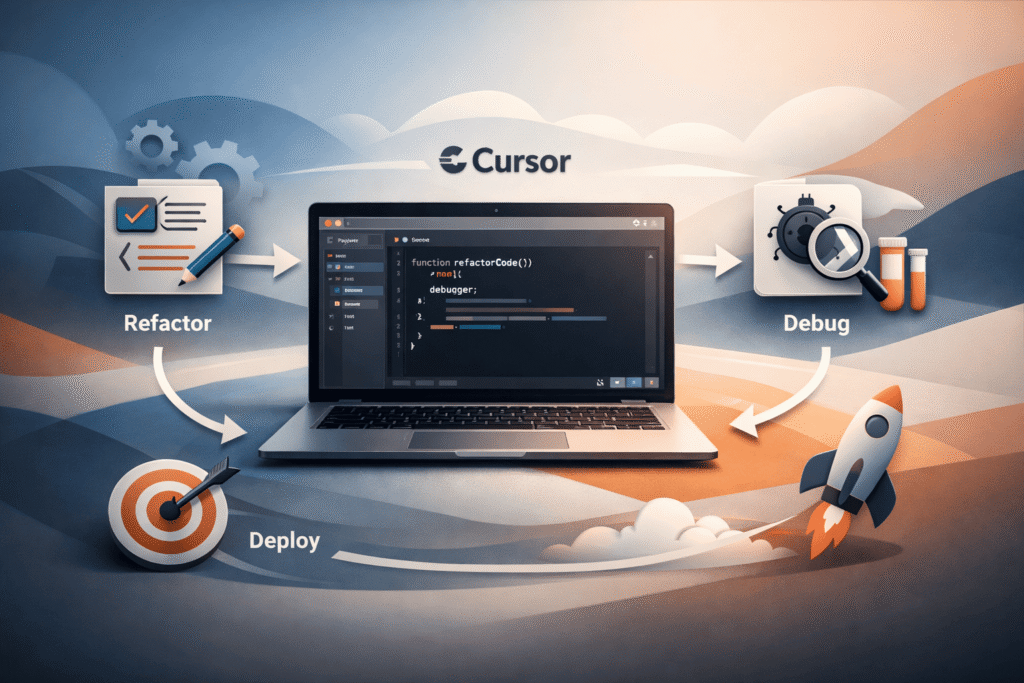
You can cut your coding time in half with Cursor by treating it less like a text editor and more like a quiet coworker who already read your whole codebase.
This AI-first fork of VS Code doesn’t just autocomplete lines, it tracks your patterns, suggests safer approaches, and can draft entire features from a plain-language prompt.
The real power shows up when you stop fighting it and start working in a shared rhythm, where your judgment sets direction and the model handles the heavy lifting. Keep reading to see how to actually build that kind of workflow.
Key Takeaways
- Leverage keyboard shortcuts for autocomplete, inline edits, and chat to maintain flow state.
- Establish project rules in .cursorrules files to ensure AI generates consistent, secure code.
- Use Composer mode for rapid prototyping by describing features in plain English.
Understanding the Cursor Interface and Core Features
Cursor feels familiar because it’s built on VS Code’s foundation. You get the same clean editor, terminal integration, and extension support you already know. The difference appears in three key areas that change how you interact with code.
The chat sidebar sits quietly on the left, ready for questions about your codebase. The composer button waits in the bottom corner for when you need to generate many files at once.
Most importantly, the AI’s suggestions appear inline as you type, predicting not just single words but entire logical blocks. This context-aware autocomplete adapts to your recent changes and the specific file you’re working on.
It learns your project’s structure over time, making its suggestions more relevant. Some developers find this constant help distracting at first, but it quickly becomes second nature. The interface stays out of your way until you need it, which is probably the smartest design choice they made.
Mastering Autocomplete for Rapid Code Generation

The most immediate power boost comes from Cursor’s autocomplete. It doesn’t just finish your variable names, it predicts multi-line changes based on patterns in your code.
When you start typing a function call, it might suggest the entire implementation with proper error handling.
You accept these suggestions with a single press of the Tab key. This simple action keeps your hands on the keyboard and your focus on the logic rather than the syntax. The AI pays attention to what you just edited, so if you add a new import, it will incorporate similar patterns in its next suggestions.
You can even guide it with natural language comments. Typing // function to confirm user email format might prompt a complete validation function with regex. This turns comments into a spec sheet for the AI.
- Tab to accept: Maintains coding rhythm
- Context-aware: Learns from recent edits
- Natural language inputs: Describe what you need
- Multi-line predictions: Suggests complete structures
Inline Editing with Cmd/Ctrl+K: Refactoring and Code Generation
When you need to change existing code, the inline edit feature becomes your best friend. Select any block of code, a function, a class, even a single line, and press Cmd+K (Ctrl+K on Windows). A dialog appears where you can instruct the AI what to do.
You can tell it to “refactor this to use async/await” or “add proper error handling.” It shows you a diff preview before applying anything, so you never lose control. This is particularly useful for cleaning up legacy code or adding security practices you just learned about.
We often use it for generating boilerplate code. Selecting an empty space and prompting “create a React component that handles user login” produces a complete component with state management. It saves the tedious work and lets you focus on the unique parts of your application.
Leveraging the Chat Sidebar for Codebase Queries and Context
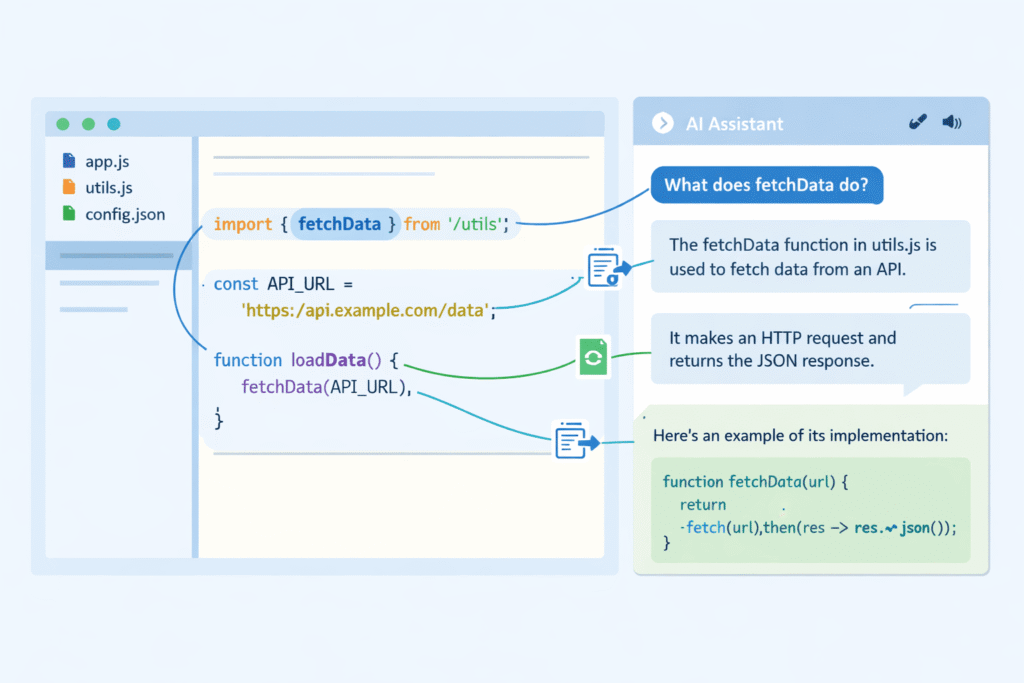
The chat sidebar (Cmd/Ctrl+L) works best when you treat it like a senior engineer who already walked through every file in your repo. It has full-codebase awareness, so you can ask direct questions like:
- “How does the authentication system work?”
- “Where is the payment processing handled?”
- “Which module handles sending emails?”
It will pull in the relevant files, summarize behavior, and surface concrete code snippets instead of vague guesses. When you want to build something new, you can also lean on it for generation.
A prompt like “write a function to encrypt user passwords” won’t just invent a random helper, it will usually follow your existing patterns for naming, structure, and libraries. Where this really gets sharp is when you start layering context with @mentions.
Using @mentions to steer the AI
You can guide the chat sidebar toward exactly what matters by tagging files, docs, or the web:
- @file mentions You can @mention a specific file to ground the model in how your project actually works: Based on @databaseConfig.js, create a new model for user profiles. Now it’s not guessing how you connect to the database or what conventions you use for models, it’s copying from a known example.
- @web for external references If you need library docs or API details, you can call @web so it can search for the right documentation and align the answer with current best practices.
- @docs for internal knowledge Point it at @docs (or your README / internal docs) when the logic depends on project conventions, env setup, or non-obvious rules that live outside the source code.
This kind of context stacking, file + docs + web, lets you move from “pretty good guess” to answers and generated code that actually match your project.
Composer Mode for Multi-File Generation and Rapid Prototyping
When you need to build something much, Composer mode (Cmd/Ctrl+I) is your starting point. It’s designed for generating many files that work together and fits naturally into a vibe coding workflow where momentum matters more than ceremony.
According to Stack Overflow’s 2025 Developer Survey, “84% of developers are using or planning to use AI tools in their development process,” which shows how deeply these capabilities are already embedded into daily coding workflows, making multi-file generation feel like a natural extension of how teams build today [1].
You describe what you want in plain English, and tools like this reflect why many developers now treat Cursor as the best editor when building fast without losing structural clarity.
The full-screen interface (Shift+Cmd+I) lets you review the proposed changes across files before applying them. You see exactly what will be created or modified. This is perfect for prototyping new features or adding standard sections to an application.
After generating the initial code, you can refine it through the integrated chat. Ask it to “make the dashboard responsive” or “add accessibility attributes” and it will update the entire set of files accordingly. This iterative approach mirrors how you’d naturally work with a human teammate.
Establishing Effective Workflows for Increased Productivity
The real power emerges when you combine these tools into consistent workflows. For new features, start with Composer to generate the foundation, then layer chat and inline edits into a rhythm that mirrors vibe coding in practice.
This style of working emphasizes flow, rapid feedback, and minimizing context switching, which is why many modern teams rethink how they choose editors in the first place, especially when evaluating essential tools for AI-assisted development.
Use inline edits to refine specific components, and let autocomplete handle the fine-tuning.
For complex tasks, Agent mode lets the AI work step-by-step while you monitor its progress. For quick questions about your code, the chat sidebar gives immediate answers.
For direct changes to existing code, Edit mode provides precise control. The key is matching the tool to the task’s complexity.
Always review the AI’s understanding before applying changes. The diff previews are your quality gate. This practice prevents mismatched expectations and ensures the code meets your standards. It turns the AI from a black box into a transparent assistant.
Customizing Cursor with Project Rules and Guidelines
Cursor becomes significantly more useful when you teach it your project’s rules. Create a .cursorrules or .mdc file in your project root to define your standards. This is where you enforce consistency across AI-generated code.
You might specify that all functions must have type hints, or that variables should use camelCase naming. You can define architectural patterns like “use the repository pattern for data access” or security requirements like “always confirm user input on the server side.”
The AI will adhere to these guidelines in its suggestions and generations. This is particularly valuable for teams maintaining code quality, or for individuals who want to learn better practices through consistent examples. The rules file acts as your project’s style guide and security checklist.
| Rule Type | Example | Benefit |
| Naming Conventions | “use camelCase for variables” | Consistent code style |
| Security Practices | “always hash passwords before storage” | Reduced vulnerabilities |
| Architecture Patterns | “use service layer for business logic” | Maintainable structure |
| Code Quality | “add error handling to all API calls” | Fewer production issues |
Best Practices for Maximizing Cursor’s Potential
Sometimes the real value from Cursor comes from small habits, not big features.
Vague:
- “make this faster”
Better:
- “Optimize this database query by adding indexes based on the @schema.sql file.”
Good prompts usually:
- Name files, functions, and models.
- Say what “better” means (faster, cleaner, safer).
- Mention limits (framework, version, performance goals).
Use @mentions as Anchors
Cursor works best when it sees your real code.
- Use @file to point at concrete examples.
- Save good patterns in small .md files (like api-style.md, query-examples.md).
- Reference those docs so Cursor follows your style, not a random one.
That way, every good result becomes training data for the next.
Commit and Iterate in Short Loops
AI makes it easy to move fast and break structure if you are not watching.
- Commit often so you have safe checkpoints.
- Make small, focused requests instead of one giant “build everything” prompt.
- Review the changes, keep what works, throw out what does not.
Treat Cursor like a sharp assistant: clear instructions, tight feedback, frequent saves. That is how you actually get the most out of it.
Integrating Secure Coding Practices
While Cursor accelerates development, security must remain a priority, especially as AI tools have become nearly ubiquitous in coding workflows.
The 2025 Stack Overflow Developer Survey found that “46% of developers said they don’t trust the accuracy of the output from AI tools,” highlighting that even widespread use comes with strong caution about correctness and reliability [2].
Embedding secure defaults in your .cursorrules ensures the AI follows safe patterns from the start rather than adding security as an afterthought.
Teams that consciously align their editor setup with secure defaults often see fewer regressions, reinforcing why vibe coding works best when safety is baked into the workflow rather than added later.
You might add rules like “confirm all user inputs against SQL injection” or “use parameterized queries for database access.” When generating authentication systems, specify “implement proper session management with secure cookies.” The AI will incorporate these practices automatically.
We find that developers who combine Cursor with ongoing security education write more robust code. Understanding the why behind security rules helps you create better prompts and review AI suggestions more critically.
The tool amplifies your existing knowledge, making secure coding practices scalable across your entire codebase.
FAQ
How does an AI code editor use natural language coding and semantic code completion together?
An AI code editor supports natural language coding by turning plain text prompts into code generation AI output.
With semantic code completion, it understands context-aware editing, codebase indexing, and large language model edit flows. This helps with inline code editing, multi-line predictions, and tab accept suggestions while keeping AI-assisted programming clear and usable.
What Cursor autocomplete features help with faster inline edits and predictions?
Cursor autocomplete supports multi-line predictions, semantic relevance code, and AI code prediction accept using tab accept suggestions.
Inline edit Cmd K and the Cmd K shortcut allow fast changes without leaving the file. These code editor shortcuts reduce friction during AI model code dev and help developers review AI changes before applying diff preview apply.
How do Composer mode and Agent mode Cursor handle multi-file generation?
Composer mode, including full-screen Composer, focuses on structured multi-file generation and feature description code.
Agent mode Cursor works across files using codebase understanding AI and codebase query chat. Together, they support prototype rapid build, iterative AI chats, and effective Cursor workflows without losing context from forked IDE AI setups.
How can project rules file and .cursorrules setup guide AI edits?
A project rules file with proper .cursorrules setup defines naming conventions rules, type hints enforcement, and global customization rules.
These project-specific AI rules guide refactoring assistant behavior and smart rewrite tool outputs. This keeps AI feedback loop results consistent, helps smaller file targeting, and improves developer productivity tool outcomes.
How does the chat sidebar AI improve codebase queries and references?
The chat sidebar AI supports codebase query chat, @file mention AI, and doc reference Cursor features.
It connects LLM code integration with web search integration for better answers. Using chat L Ctrl open, developers can ask questions, add codebase context add, and manage Cursor AI tutorial style learning without breaking focus.
Your New Coding Rhythm
Cursor feels less like a tool and more like a quiet pair programmer when you let it into your habits. Shortcuts fade into muscle memory, chats feel like quick consults with a sharp teammate, and the code starts matching what you meant, not just what you typed.
The developers who get the most out of it do one simple thing: they keep thinking. They read diffs, shape prompts, and let Cursor handle the repetitive patterns while they tackle the hard, human problems.
If you want that same kind of partnership for security, join the Secure Coding Bootcamp.
References
- https://survey.stackoverflow.co/2025/ai
- https://stackoverflow.co/company/press/archive/stack-overflow-2025-developer-survey