


You can build an app without memorizing every line of code, by working with AI as a coding partner instead of trying to do everything alone. In many cases, learners in our secure development bootcamp have been able to go from zero to running prototypes by explaining what they want in plain language, then reviewing and shaping the code the AI generates.
That shift, from typing syntax to guiding intent, changes how software is built and how we teach it. When done well, it even bakes security into the process from day one. Keep reading to see how this kind of collaboration actually works in practice.
Key Takeaways
- Your natural language is your most powerful tool for describing app features to an AI.
- Starting with a simple project, like a to-do list, builds confidence and understanding.
- The iterative cycle of prompt, preview, and refine is the core of the AI-assisted workflow.
From Writing Code to Having a Conversation
The first time you try it, the ease can feel surprising. You type a sentence like, “Create a function that sorts a list of names alphabetically,” and the code appears, perfectly formatted. It’s not about the AI doing everything for you. It simply handles the repetitive parts so you can focus on the bigger ideas.
In many projects, Copilot now writes nearly half of the code, and in some Java codebases it provides up to 61 % of all lines, showing how deeply AI-assisted coding has entered real-world workflows. (1) This shift toward conversational development changes how we interact with computers when building software. The barrier to entry, once so high, is now just a conversation.
We’ve found that this conversational approach naturally leads developers to consider Secure Coding Practices from the very beginning. When you describe what you want an app to do, you often start thinking about what it shouldn’t do, though the AI may still require clear guidance to generate secure code. You might prompt, “Create a login form that safely handles passwords,” which guides the AI toward generating more robust code. It’s a subtle shift in mindset that pays dividends in application quality.
Choosing Your Digital Workshop
Credits: Rob Mulla
You don’t need a supercomputer to get started. Most beginners find that taking the first steps is much easier once they’re getting started with tools that are simple, lightweight, and designed for fast experimentation. The options are surprisingly accessible and often free, letting you focus on learning rather than setup.
Your choice really depends on your background and comfort level. If you’re completely new to coding, a no-code platform might be the gentlest introduction.
If you have some experience or are feeling adventurous, an AI-enhanced code editor will offer more power. A 2025 survey suggests that around 84 % of developers use or plan to use AI coding tools, and that roughly 41 % of code currently being written in certain environments is AI-generated. (2)
For many, the journey begins inside a code editor. Visual Studio Code (VS Code) is a popular, free choice. It’s a blank canvas that you customize with extensions. The key extension here is an AI assistant like GitHub Copilot. Once installed, it starts suggesting code as you type, learning from your project’s context. Another option is Cursor, which is built around AI from the ground up. It’s designed to make asking the AI questions and making changes across multiple files a seamless experience.
If the idea of installing software feels daunting, you can start entirely in your web browser. Platforms like Lovable or Replit provide a complete environment where you can write, run, and deploy your app without any setup. You just create an account and you’re ready to go. They often have their own built-in AI agents, like the Replit Agent, that you can chat with to build and debug your project. This is a fantastic way to dip your toes in the water.
- VS Code with Copilot: Best for those who want a customizable, professional-grade editor.
- Cursor: Ideal for developers wanting deep AI integration for complex projects.
- Lovable/Replit: Perfect for beginners seeking a zero-setup, all-in-one experience.
No matter which path you choose, it’s a good habit to connect your project to version control. GitHub is the standard. Think of it as a save point system for your code. Every time you make a significant change, you “commit” it. If something breaks later, you can easily revert to a working version. GitHub Desktop provides a simple graphical interface to manage this, making it much less intimidating than command-line tools.
The Art of Talking to Your AI Assistant
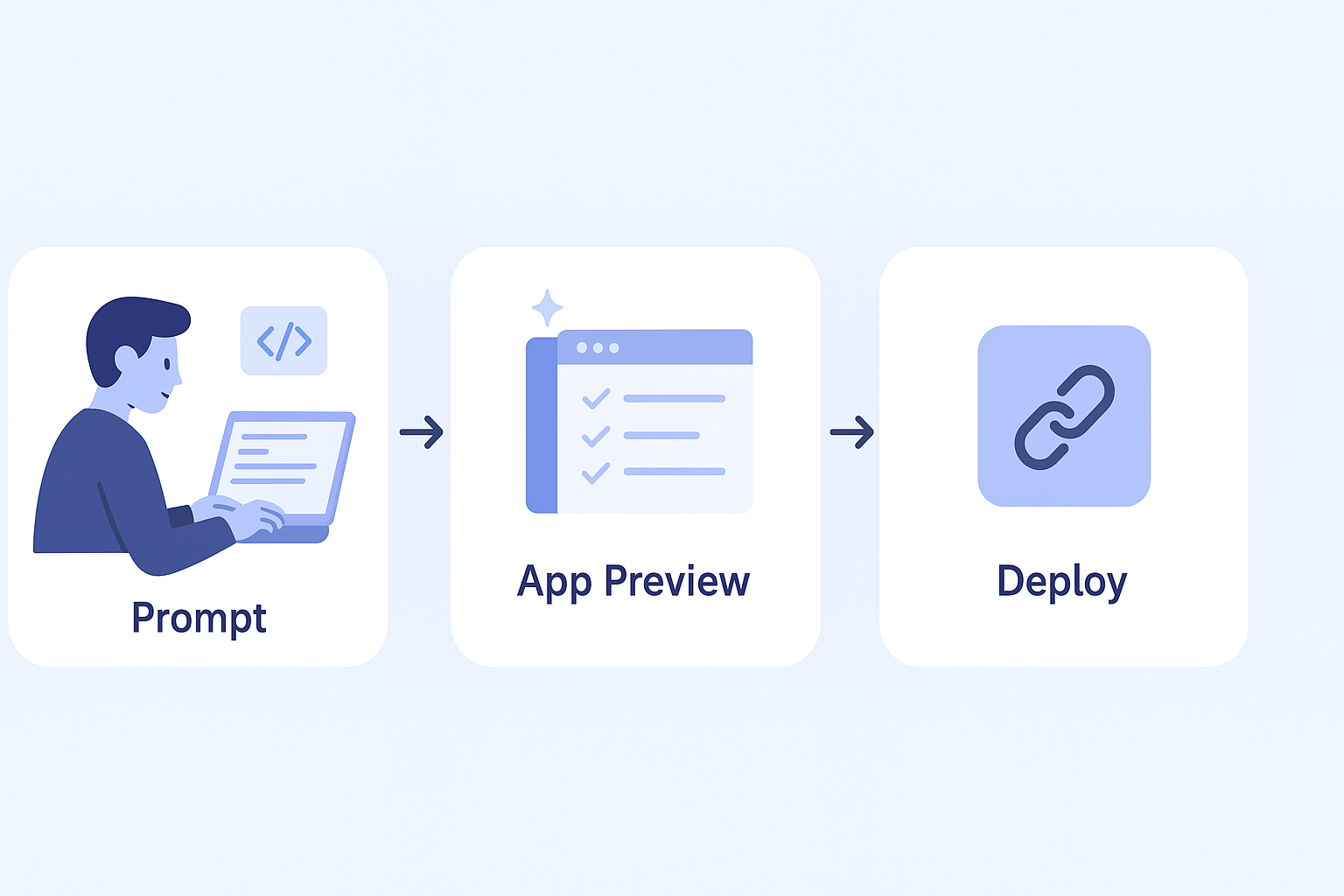
The single most important skill in AI-assisted coding is prompt engineering. This is a fancy term for learning how to talk to the AI effectively. It’s not about using special keywords, it’s about being clear and specific. Vague requests yield vague results. Detailed descriptions yield detailed code. Think of it as giving instructions to a very talented, but very literal, junior developer.
Start with the big picture. Describe the app you want to build. Don’t just say “a to-do list.” Instead, try: “Build a to-do list web application. It should have a text input field to add new tasks, a button to submit them, and a list that displays all tasks. Each task in the list should have a checkbox to mark it complete and a delete button to remove it.” See the difference? The AI has a clear blueprint to work from.
Your first result will rarely be perfect, and that’s where iteration comes in. This is the real workflow. You build, you look, you refine. You might get the to-do list, but the tasks disappear when you refresh the page. So your next prompt is: “Modify the app to save the tasks in the browser’s local storage so they persist after a refresh.” Then you might say, “Now, add a feature to filter the list to show only active or completed tasks.” Each prompt builds upon the last.
You can also use prompts for learning and debugging. Stuck on a piece of code? Prompt the AI with: “Explain what this function does in simple terms.” Or, “This code is causing an error. Can you suggest a fix?” The AI becomes an always-available tutor, turning moments of frustration into learning opportunities.
Building Your First App: A Step-by-Step Walkthrough

The best way to learn is by doing. Don’t aim for a complex social network on day one. Choose a simple, classic beginner project. A to-do list app is often the go-to choice for a first project because it covers core basics of interactivity.
It covers fundamental concepts: user input, data display, and basic interactivity. Another great starter is a random snack or movie recommender.
Here’s how a typical first session might go. You open your chosen tool, be it Lovable or Cursor. You type your detailed prompt for the to-do list. Within seconds, you have a working prototype. You click the buttons, you add a task. It works. That initial thrill is powerful. You’ve created something functional.
Now, you iterate. The layout might be plain. Your next prompt: “Improve the styling with a modern CSS framework. Use a blue color scheme.” The AI applies a clean, professional look. You realize you want to set priorities. Prompt: “Add a priority level to each task: Low, Medium, High. Display the priority next to the task.” The code updates. You preview again. This cycle of prompt-preview-refine is incredibly fast. What might have taken an afternoon of manual coding can now happen in minutes.
Finally, you deploy. On platforms like Lovable or Replit, deployment is usually just a few clicks and doesn’t require much setup. You get a public URL you can share with friends. It’s a real, live application on the internet that you built. That tangible result is the ultimate motivator to keep going, to try a more ambitious project next.
Beyond the Basics: Refining Your AI-Assisted Workflow
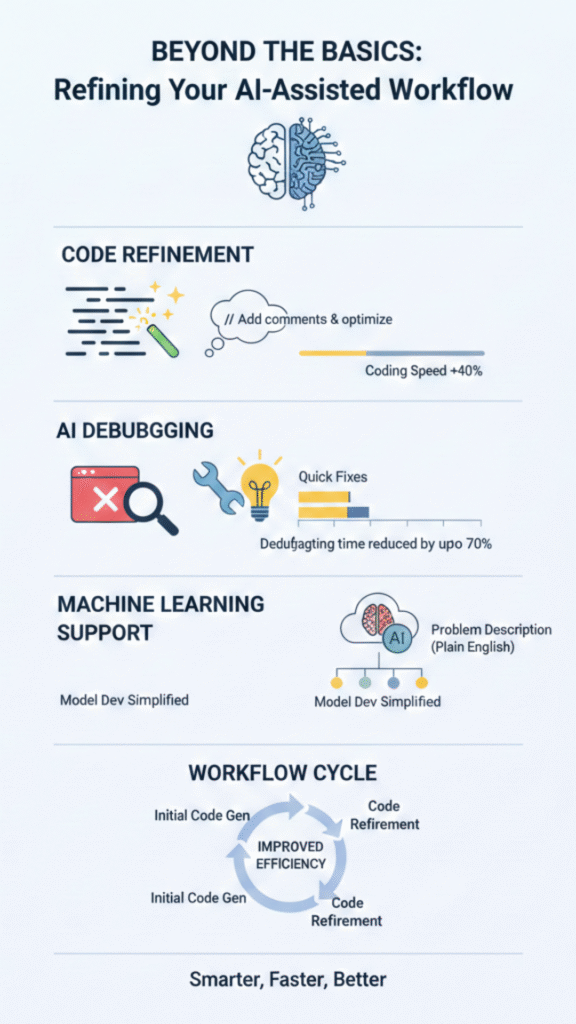
Once you’ve picked a tool that feels comfortable, the next step is creating a workspace that supports smooth building and quick iteration. Many beginners discover that taking a moment to set up their coding environment, whether it’s installing the right extensions or preparing a clean project folder, makes the whole process feel more organized and less intimidating.
AI debugging is another powerful application. Instead of spending hours searching through documentation, you can paste an error message and ask the AI for a diagnosis. It can often pinpoint the issue and suggest a specific fix. This turns debugging from a frustrating chore into a quick learning session.
For machine learning coding or algorithm work, the AI can suggest starting points for structuring logic, but you’ll still refine and verify the approach. You can describe the problem you’re trying to solve in plain English, and the AI will propose a computational approach. It’s like having a brainstorming partner who also knows how to code.
FAQ
How do I choose the right tool when starting with AI-assisted coding?
When you begin with AI-assisted coding, start simple. Many beginners try no-code tools or low-code development to learn the basics. If you want more control, try an AI programming assistant or an AI-based IDE that offers AI code suggestions and code autocompletion. Pick whatever feels easy to use, whether it’s natural language programming or drag-and-drop coding.
What’s the easiest way to practice writing AI code prompts as a beginner?
Begin with short, clear requests. This helps you learn prompt engineering and natural language coding without feeling overwhelmed. Try small tasks like asking for a button or form. Over time, you’ll get better at prompt-based coding and start seeing how AI code generation responds. This simple practice builds confidence and speeds up learning.
How can I debug my first small project when working with AI-generated apps?
You can use AI debugging tools that explain errors in plain language. These tools help you fix problems step by step. They work well with iterative coding because you can test, adjust, and try again quickly. Many AI development tools also give hints or run AI code analysis to show where the issue might be.
What type of AI starter projects work best for learning?
Choose projects you can finish in a day. A small website, a note app, or a simple counter helps you practice AI workflow automation and real-time AI coding. These AI starter projects let you test app prototyping AI, AI code refinement, and collaborative AI coding without getting stuck in something too big.
How do I deploy a beginner project built with coding support from AI?
Start with simple hosting options. Many platforms let you try AI project deployment without extra setup. You write prompts, review AI programming help, then publish. This teaches you coding with machine intelligence and the full AI development workflow. Deploying small projects helps you learn how AI-driven software moves from idea to something people can us.
Building Your First App Starts With One Conversation
AI-assisted coding isn’t just a shortcut, it’s a new way to turn your ideas into working software through simple, intentional conversations. By learning how to guide the AI with clear prompts, iterate quickly, and use your tools wisely, you remove the biggest barriers that usually slow beginners down. This approach helps you build confidence fast, while still learning the foundations of real development.
If you want to deepen your skills and learn how to apply this workflow safely from day one, you can explore the Secure Coding Practices Bootcamp, a practical program designed to help beginners build secure, reliable apps without overwhelming jargon.
References
- https://www.wearetenet.com/blog/github-copilot-usage-data-statistics
- https://www.secondtalent.com/resources/ai-in-software-development-statistics/